
The question always arise is how can I change the icon images on my desktop in Ubuntu to ones I am familiar with. In this case, we are changing the blue Chromium to a Red Chromium icon.

Download New Icon
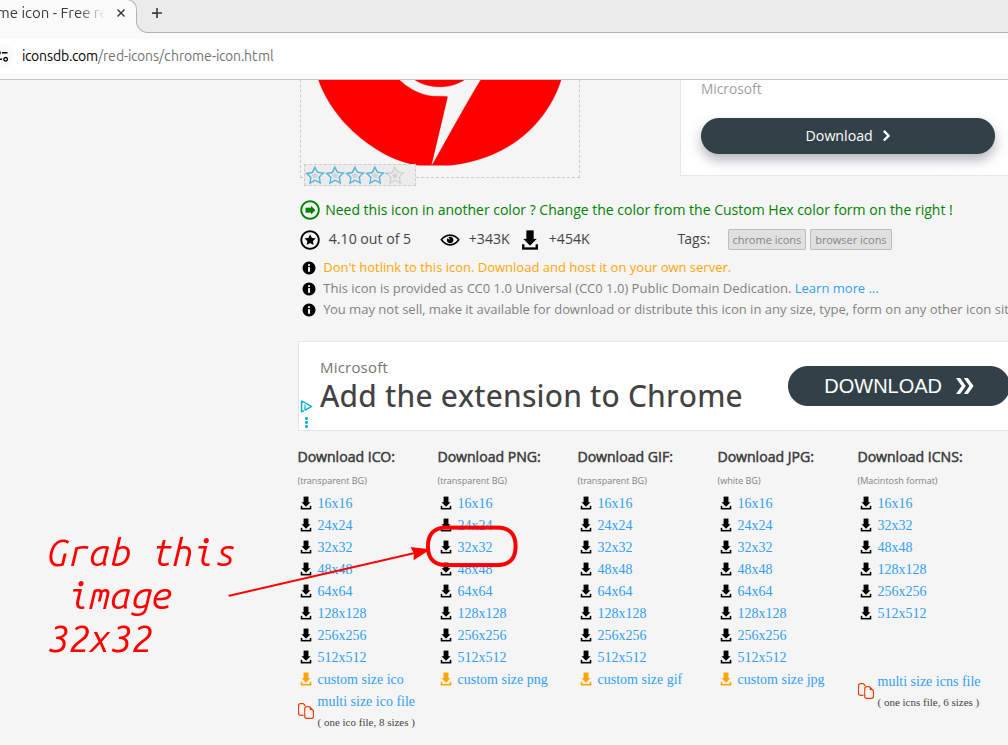
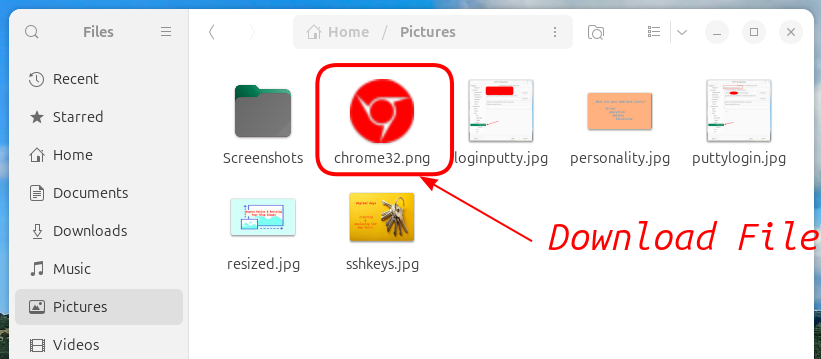
Download a png file of the new icon image and save to your Pictures folder. The file size shouldbe 32px x 32px.
Find the App Launcher File
Each installed app has a launcher file typically named appname_appname.desktop. It could be stored in a number of locations depending on how it was installed. Either manually or by RPM. The two main RPM for Ubuntu are Snap and Apt-Get. Snap is now the default Ubuntu RPM for applications.
- /var/lib/snapd/desktop/applications/ (snap launcher files)
- /usr/share/applications (apt installed packages launchers).
- ~/.local/share/applications (user specific override system launchers).
- /home/snap/chromium/current/ (User profile, cache, user level data).
- /snap/chromium/current (the actual app itself).
In our case the app was installed via snap so the original app launcher file is located in /var/lib/snapd/desktop/applications/.
Edit Config File
If we modify the original file locations, when an update occurs this file is overwritten with a new copy. So, any change will not survice a reboot or software updates. They are not persistant.
Instead, we will create a file under the user’s folder and make any custom changes to that copy. The order of execution by default is any local fodler, then the original file location.
First, make an applications directory under the local account. Next, make a copy of the appname_appname.desktop file in the original snap directory and place it in the new directory.
mkdir -p ~/.local/share/applications
cp /var/lib/snapd/desktop/applications/chromium_chromium.desktop ~/.local/share/applications/
-p = create a directory and any necessary parent directories in the specified path, even if they don’t already exist.
Next, open the new chromium_chromium.dekstop file.
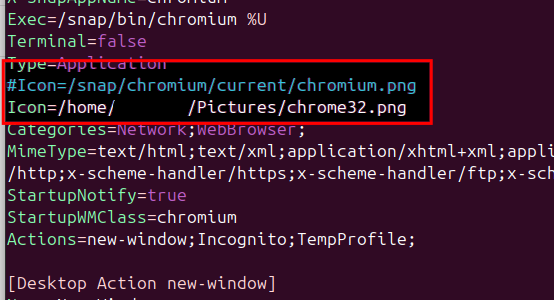
vim ~/.local/share/applications/chromium_chromium.desktopFind the line marked “Icon”, and make a copy of the line, then comment out the original. Next, modify the line to the path containing your new icon file.
Make the file executable
chmod +x ~/.local/share/applications/chromium_chromium.desktopFinally, update the desktop cache. The new icon should remain across reboots and software updates.
update-desktop-database ~/.local/share/applications